
After installing and activating EmailMerge365 in Microsoft Outlook, you can begin the mail merge process simply by composing a new email. Launching the add-in will then allow you to select recipients from different data sources, create a mail merge document, and send personalized messages— see our easy mail merge tutorial for further details.
How to Start Mail Merge with EmailMerge365
1. New Outlook & Outlook OWA
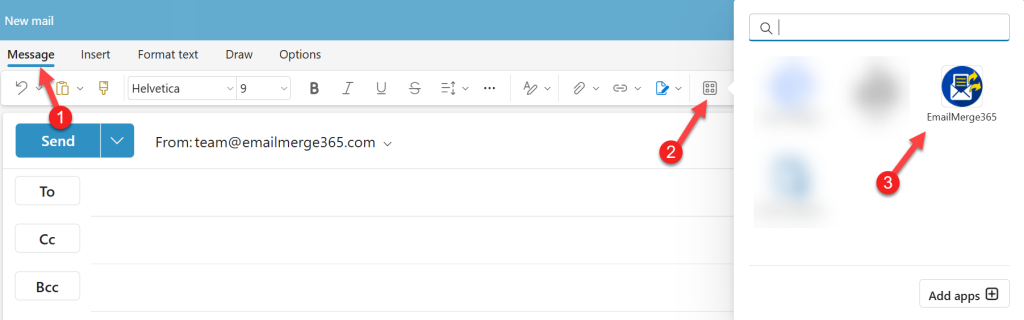
To launch the EmailMerge365 add-in:
- Click New Email to open a new Email.
- Click the Apps icon on the Ribbon and then click EmailMerge 365 to open the EmailMerge app directly beside the new email.
2. Classic Outlook
To launch the EmailMerge365 add-in, click New Email > Send Campaign and the application will launch automatically:

3. Legacy Outlook
To launch the EmailMerge365 add-in, click New Email > Send Campaign and the application will launch automatically:
